PS5 Controller Compatibility Issues: Complete Solutions Guide
Understanding PS5 Controller Compatibility
The PlayStation 5 DualSense controller is one of the most advanced gaming controllers available today. It offers features such as haptic feedback, adaptive triggers, motion sensing, and a modern ergonomic design. However, using it outside the PlayStation ecosystem can sometimes create compatibility challenges.
Many players want to use their preferred controller across different platforms, including PC, Xbox, Nintendo Switch, and other gaming setups. In practice, this is not always straightforward. Each platform uses its own communication standards, controller authentication methods, and input profiles.
This guide explains common PS5 controller compatibility issues, how to troubleshoot them, and how dedicated adapter hardware can help create a smoother cross-platform experience.
Common PS5 Controller Compatibility Problems
Bluetooth Connection Issues
Bluetooth connectivity is one of the most common areas where users experience problems with the DualSense controller. Wireless connections can be affected by signal interference, operating system limitations, or conflicts with other Bluetooth devices.
Typical symptoms include random disconnections, delayed input response, failed pairing attempts, or the controller being detected only as a basic input device.
On PC, the controller may work for standard input, but some advanced features may not be available in every game or application. This depends on the game, the platform, and the controller support provided by the software.
Input Mapping Differences
Different platforms use different controller layouts and input standards. A button that works one way on PlayStation may be interpreted differently on another platform. This can result in confusing button layouts, incorrect prompts on screen, or controls that need to be manually adjusted.
These issues are especially noticeable when switching between multiple systems. Players who are used to the DualSense layout may need additional configuration to keep a familiar and comfortable control setup.
Limited Feature Support on Some Platforms
The DualSense controller includes features that are designed primarily for PlayStation 5. When the controller is used on PC or other platforms, features such as haptic feedback, adaptive triggers, and motion controls may be limited or unavailable.
In many cases, the controller will still work for standard gameplay, but the full DualSense experience depends on platform-level support and game compatibility.
Hardware Solutions for Better Compatibility
Gaming Controller Adapters
A dedicated gaming controller adapter can help improve compatibility between different controllers and gaming platforms. These devices work as a bridge between the controller and the target system, translating input signals into a format the platform can recognize.
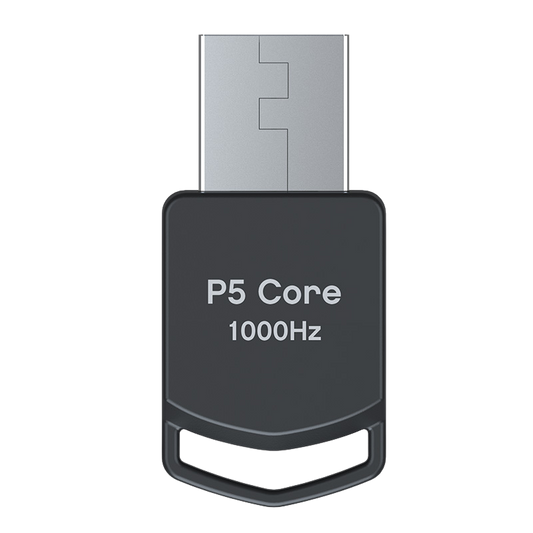
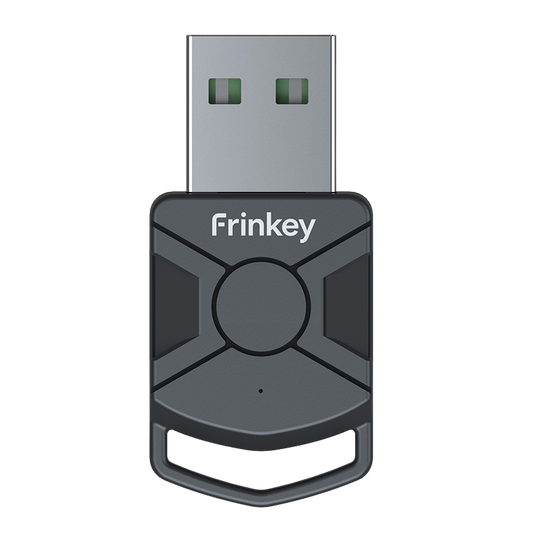
The Titan Two P5 Adapter is designed to help users connect compatible controllers to PlayStation 5 setups where additional authentication support is required. It can be useful for players who want a more flexible controller setup while keeping their preferred hardware.
In addition to basic compatibility, advanced adapters may also offer controller configuration options such as button remapping, profile management, and input adjustment settings. These options can help users create a setup that feels more natural and consistent across different platforms.
Firmware and Device Updates
Keeping your controller, console, adapter, and gaming software updated is important for stable performance. Manufacturers may release updates that improve connection stability, fix known issues, or expand compatibility with supported devices.
Before troubleshooting more complex problems, check whether your controller firmware, console system software, adapter firmware, and PC drivers are up to date.
Software-Based Compatibility Tips
Driver Management on PC
On PC, correct driver detection is essential for reliable controller performance. Windows may detect the DualSense controller automatically, but some games and launchers provide better support than others.
Steam offers built-in controller support and can help configure the DualSense controller for many games. Depending on the title, this may improve button mapping, controller recognition, and general usability.
- Install the latest Windows updates and controller drivers
- Enable PlayStation controller support in Steam when needed
- Check USB power management settings if the controller disconnects
- Use a high-quality USB cable for wired connections
- Calibrate analog sticks and adjust dead zones if supported by the game
Controller Configuration Tools
Some users may benefit from controller configuration tools that help with button layouts, profiles, and input settings. These tools can be useful when a game does not natively support the DualSense controller or when the default layout does not feel comfortable.
When using third-party software, always choose reputable tools, keep them updated, and check compatibility with your games and platform.
Platform-Specific Troubleshooting
PC Gaming
PC gaming setups can vary widely depending on hardware, operating system version, launchers, and individual game support. For this reason, PS5 controller compatibility on PC may require a few setup steps.
Start with the basics: test both wired and wireless connections, confirm that the controller is detected correctly, check Steam or game-specific controller settings, and try another USB cable or USB port if needed.
| Issue | Possible Cause | Suggested Solution |
|---|---|---|
| Bluetooth pairing fails | Driver or pairing conflict | Remove the device and pair it again |
| Input delay | Wireless interference or USB power settings | Try wired mode or adjust power settings |
| Buttons are mapped incorrectly | Game or launcher configuration | Check controller settings in the game or Steam |
| Advanced features do not work | Limited platform or game support | Confirm whether the game supports DualSense features |
Console Cross-Compatibility
Using a PS5 controller on another console is more complex than using it on PC. Consoles usually require specific controller authentication and input standards. Because of this, a controller may not work directly when connected to a different console.
A compatible gaming adapter can help translate controller input and improve cross-platform usability. The exact setup depends on the console, controller, adapter, and connection method.
Important Considerations for Serious Players
Reliability and Consistency
For players who switch between multiple systems, consistency is important. A reliable controller setup helps reduce interruptions, avoids unexpected disconnections, and keeps the gameplay experience familiar across platforms.
Choosing quality cables, keeping firmware updated, and using supported adapter hardware can make a noticeable difference in day-to-day use.
Customization Options
Many players prefer to adjust their controller layout to match personal comfort, accessibility needs, or game-specific preferences. Button remapping, sensitivity settings, and profile options can make the controller easier and more comfortable to use.
Before using advanced configuration options, always check the rules of the game, platform, or event you are participating in. Some competitive environments have strict requirements for allowed hardware and settings.
Frequently Asked Questions
Can PS5 controllers work wirelessly on all platforms?
Wireless support depends on the platform. Basic Bluetooth input may work on many systems, but advanced DualSense features are not guaranteed outside PlayStation 5. Some platforms may require additional software, drivers, or adapter hardware.
Do gaming adapters add input delay?
High-quality adapters are designed to keep input delay very low. In most normal gameplay situations, any added delay should be minimal. For best results, use updated firmware, quality cables, and a supported setup.
Are controller adapters allowed in tournaments?
Rules vary depending on the tournament, platform, and organizer. Some events allow adapters for controller compatibility, while others have stricter hardware rules. Always check the official rules before participating.
Future-Proofing Your Controller Setup
Gaming hardware and platforms continue to evolve. Choosing devices with firmware update support and broad compatibility can help extend the life of your setup.
A flexible controller setup can be useful for players who use multiple systems or want to keep using their preferred controller across different platforms.
By combining updated firmware, correct configuration, reliable cables, and compatible adapter hardware, you can reduce common PS5 controller compatibility problems and create a smoother gaming experience.
Note: Compatibility may vary depending on the controller model, console version, firmware, game, and connection method. Titan Two Europe is an independent reseller and is not affiliated with Sony, PlayStation, Microsoft, Xbox, Nintendo, or other platform owners.